Your finished digital wrap can travel through the Tesla app on supported vehicles. No USB trip required. Here’s how to take a design from the studio to your car.
Start in Design Studio and choose the matching model, body generation and variant. Upload your own artwork, try a demo pattern, or remix a community design. Auto fit suggests upright placement on the hood or body; Whole image preserves the full image, and Fill covers the layout and crops overflow. Manual editing is free.
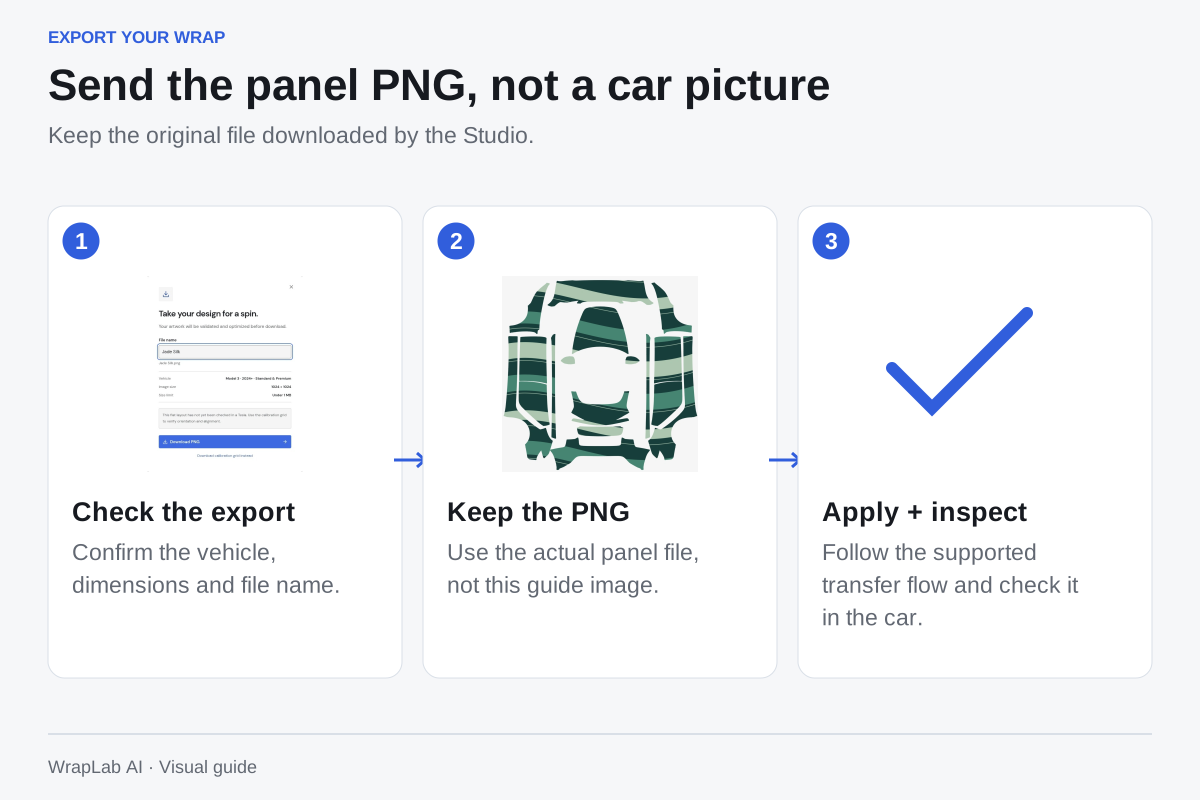
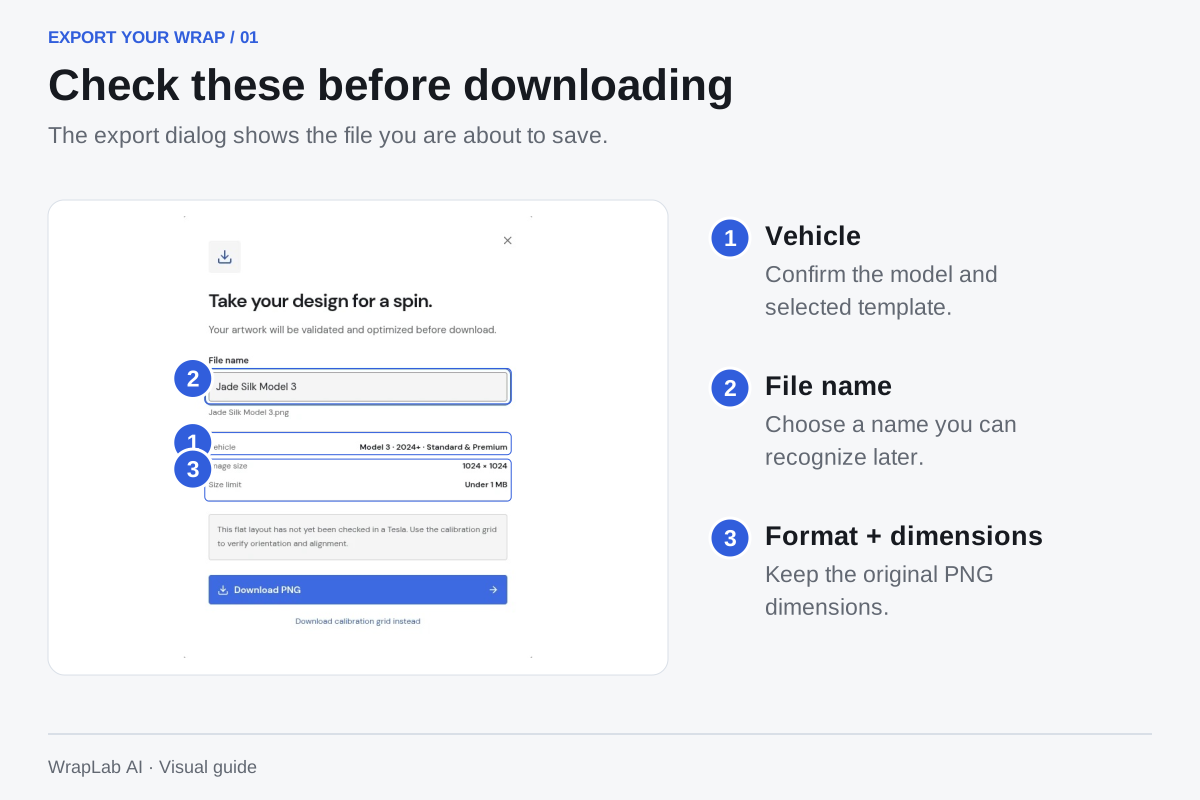
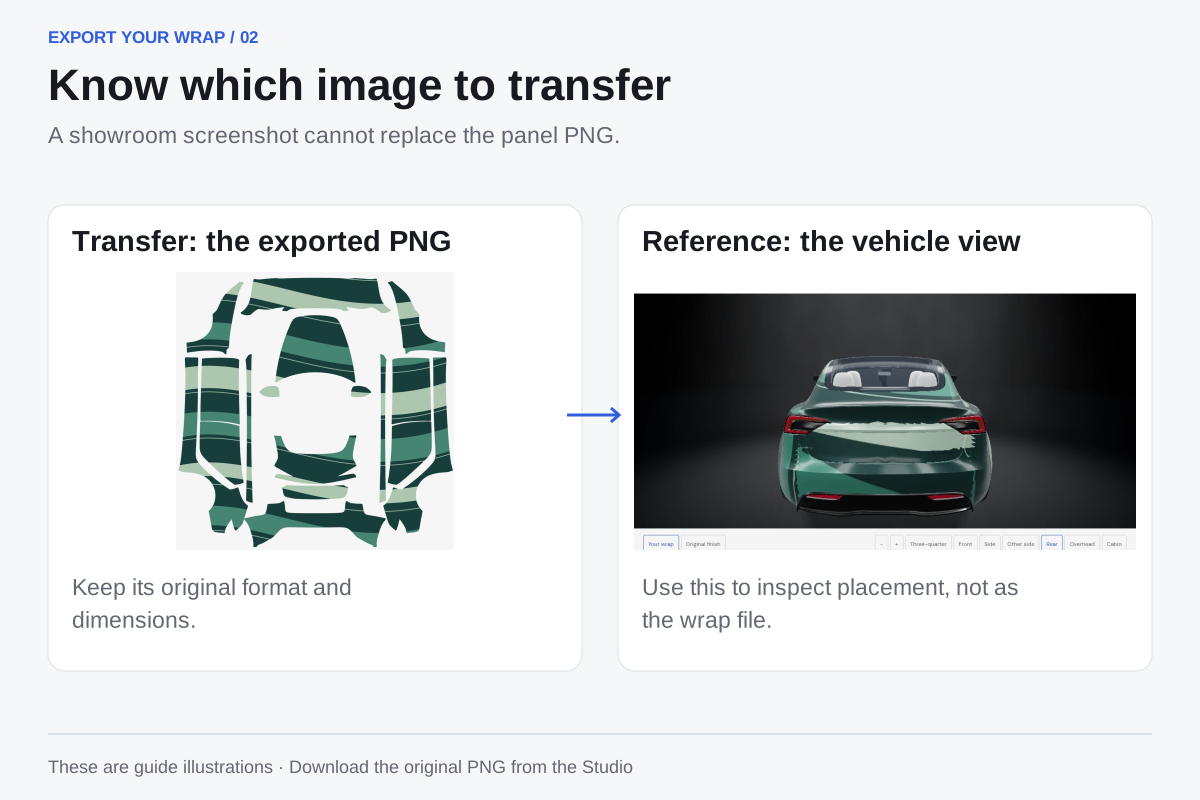
Give the design a recognizable name and select Download wrap. WrapLab AI preserves the official template dimensions, checks the PNG size and prepares a short filename. Use this exported panel layout, rather than a screenshot of the 3D car. Keep the original PNG intact when moving it to your phone.
Know which image to transfer. A showroom screenshot cannot replace the panel PNG. View full size ↗
03
Upload through the Tesla app
Use Tesla app version 4.59.0 or later. Select your vehicle, then open Creations → Wrap → Upload and choose the exported PNG. Keep the file somewhere the upload picker can access. If your picker only shows photos, save the original PNG to your photo library first.
04
Apply it on your Tesla’s screen
After transfer, open Toybox → Paint Shop → Wraps in your vehicle and select the design. Inspect the hood, doors and bumpers. If a subject sits in a cutout or the placement needs work, return to the studio, adjust it and export again. Our 3D preview helps you explore; the final in-car result is the placement check.
The file still matters.
The transfer method changes how the image gets to your car. It does not change the required panel layout. Choose the correct vehicle template before downloading.
File typePNG
DimensionsUse the official template size512–1024 pixels per side; Cybertruck export is 1024 × 768.
FilenameUp to 30 charactersLetters, numbers, spaces, underscores and dashes.
If the upload doesn’t work.
Can’t find the menu?
Check the Tesla app version and your vehicle’s available features. Look for the wrap controls on the selected vehicle. If your software does not offer mobile transfer yet, use the USB method below.
Wrong colors or broken placement?
Upload the exported PNG instead of a car screenshot. Check that the selected model and variant match your car. A photo placed over a flattened template may cross several panels; use the studio to reposition it around cutouts.
File rejected?
Try a fresh studio export with a short name. Preserve PNG format and avoid messaging services that resize or convert images. Check the size and dimensions if the file was edited in another app.
Prefer a USB drive?
USB transfer remains another option. Put the PNG in a folder named Wraps at the drive’s root, then select it in the vehicle’s wrap menu. Tesla lists exFAT, FAT32, MS-DOS FAT, ext3 and ext4 as supported formats, and excludes NTFS. Keep map and firmware update files off that drive.
Try the design on your screen first. Bring your template export, original artwork and concept views to a professional installer, then compare physical film samples. The installer checks your vehicle, prepares print files at full size and plans the seams.
It changes the vehicle visualization. You can also bring the exported template and 3D concept views to an installer to explain a real vinyl design. Include your high-resolution original artwork: the small screen PNG is a placement reference, and the installer prepares measured production files, bleed and seams.
Can I download a community wrap instead?
Yes. Community downloads and manual remixes are free. Choose a design for your model, download the PNG, then follow the same upload steps.
Tesla’s published guide lists up to 10 wraps transferred through the mobile app and up to 10 through USB.
Will WrapLab AI send the file for me?
Download your PNG here and upload it in the Tesla app. WrapLab AI does not connect to your Tesla account or remotely control your vehicle.
Transfer instructions checked against Tesla’s official custom-wrap guide ↗. Menu availability depends on your vehicle and software. Updated October 3, 2026.
MAKE THE NEXT LOOK YOURS
Bring an image. Leave with a wrap.
Uploads, manual editing, community downloads and remixes are free.