
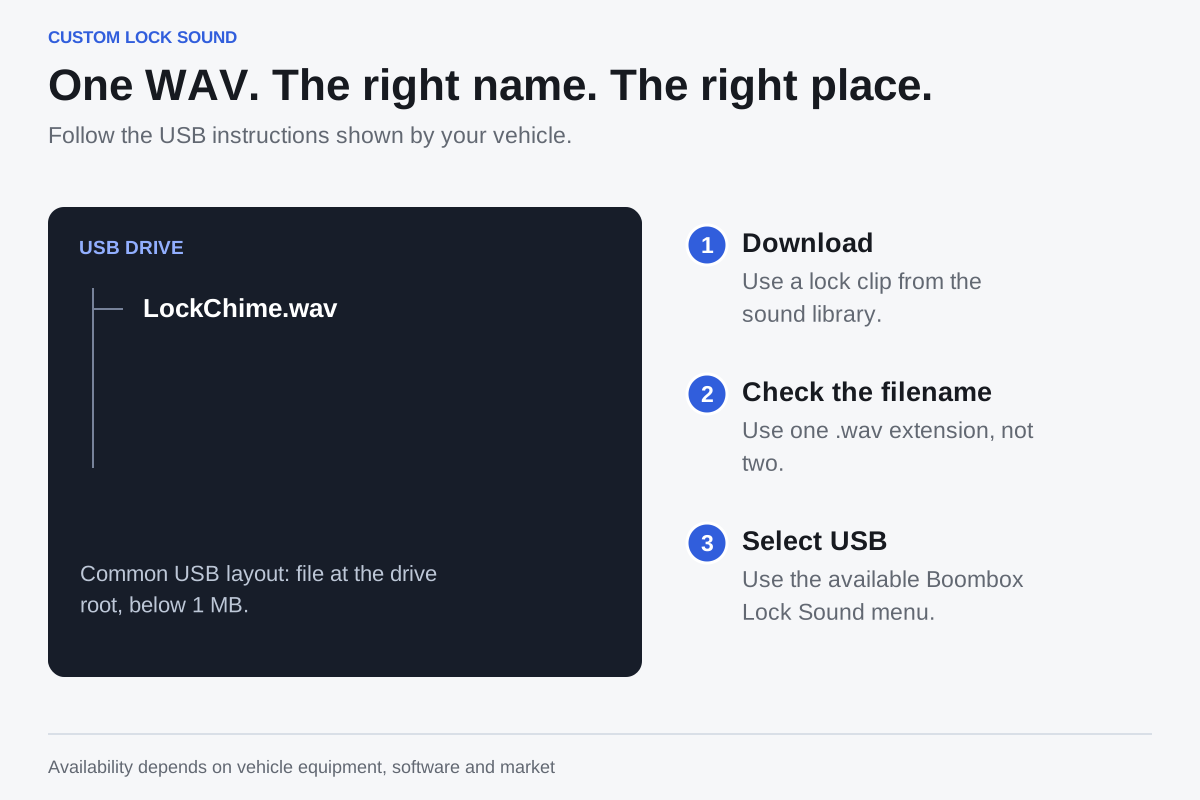
Get the file ready
The lock downloads in our sound library are named LockChime.wav and stay below 1 MB. For the commonly documented USB workflow, place that file at the root of the drive, then select USB under Toybox → Boombox → Lock Sound. Confirm the required location with the instructions shown in your vehicle; features vary with its equipment, software and market.
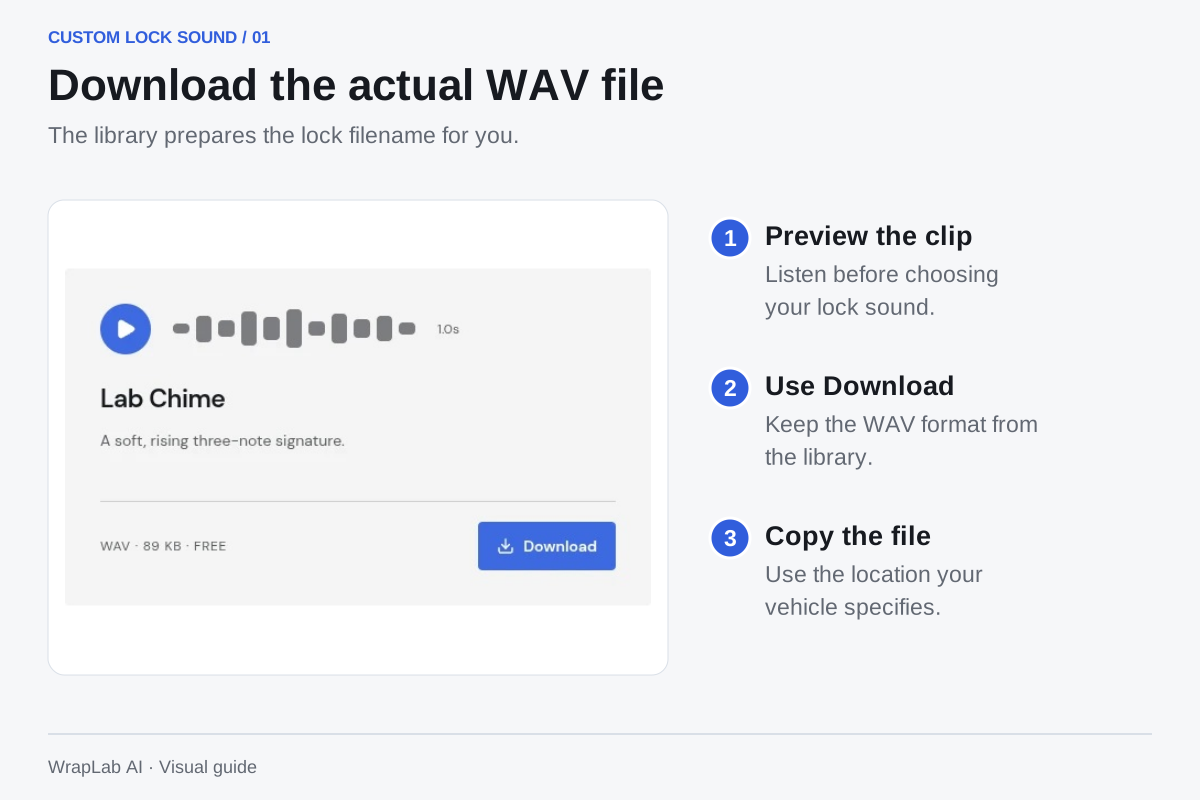
If the sound is missing
Check for a doubled extension such as LockChime.wav.wav. Use a USB port that supports data; some center-console ports only charge devices. Confirm your vehicle has the external speaker and offers custom lock sounds. The download does not install itself or enable missing vehicle hardware.
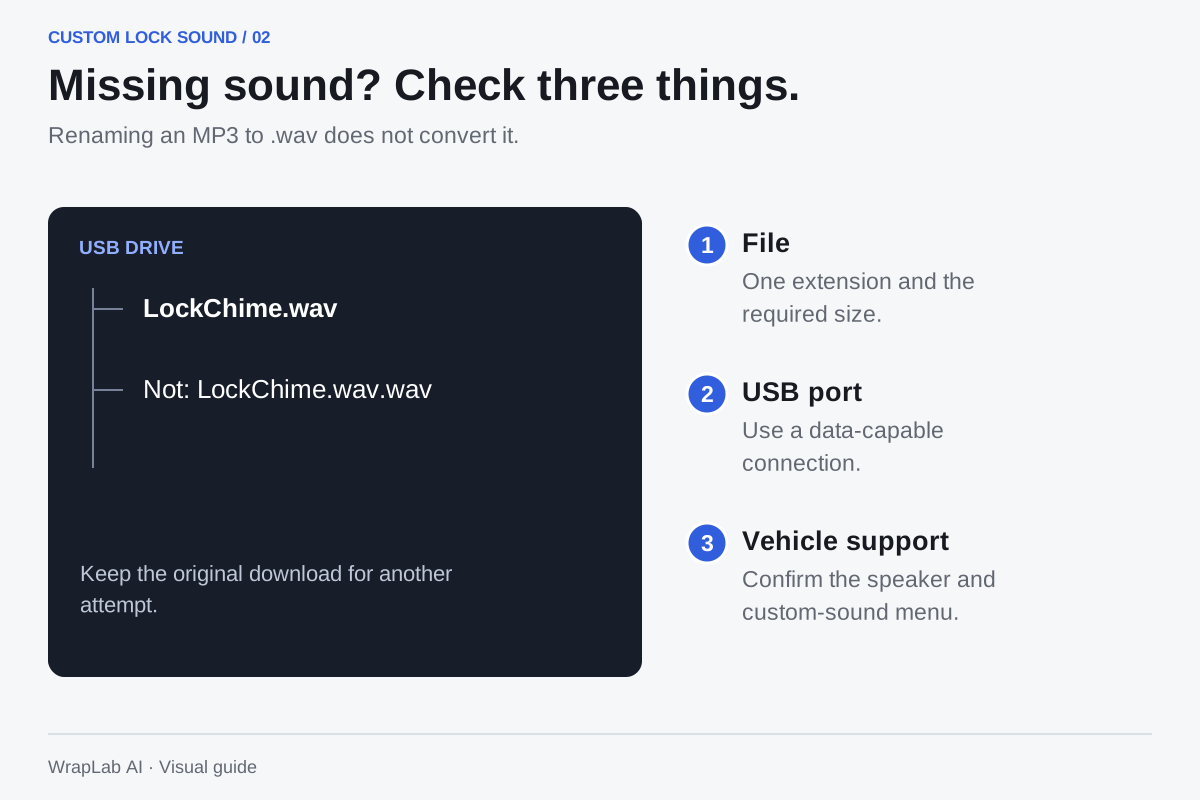
Download, install, test
Preview the clips in our library and choose a short one you will enjoy hearing repeatedly. Keep the saved file’s WAV format; renaming an MP3 does not convert it. Choose a moderate listening volume while testing and follow the vehicle’s current instructions.
- Download one lock clip as LockChime.wav.
- Check that the filename has only one .wav extension and is below 1 MB.
- Copy it to the drive location shown by your vehicle.
- Choose the USB lock sound in the available Boombox menu.
- Test the lock action and keep the original download for another try.
Sources & further reading
Check the manufacturer’s instructions for your vehicle or exact film before installation.
Tesla: Boombox availability and USB ports ↗USB lock-sound setup reference ↗Pick your signature sound.
Original clips, ready to preview and download for free.
Explore free sounds