
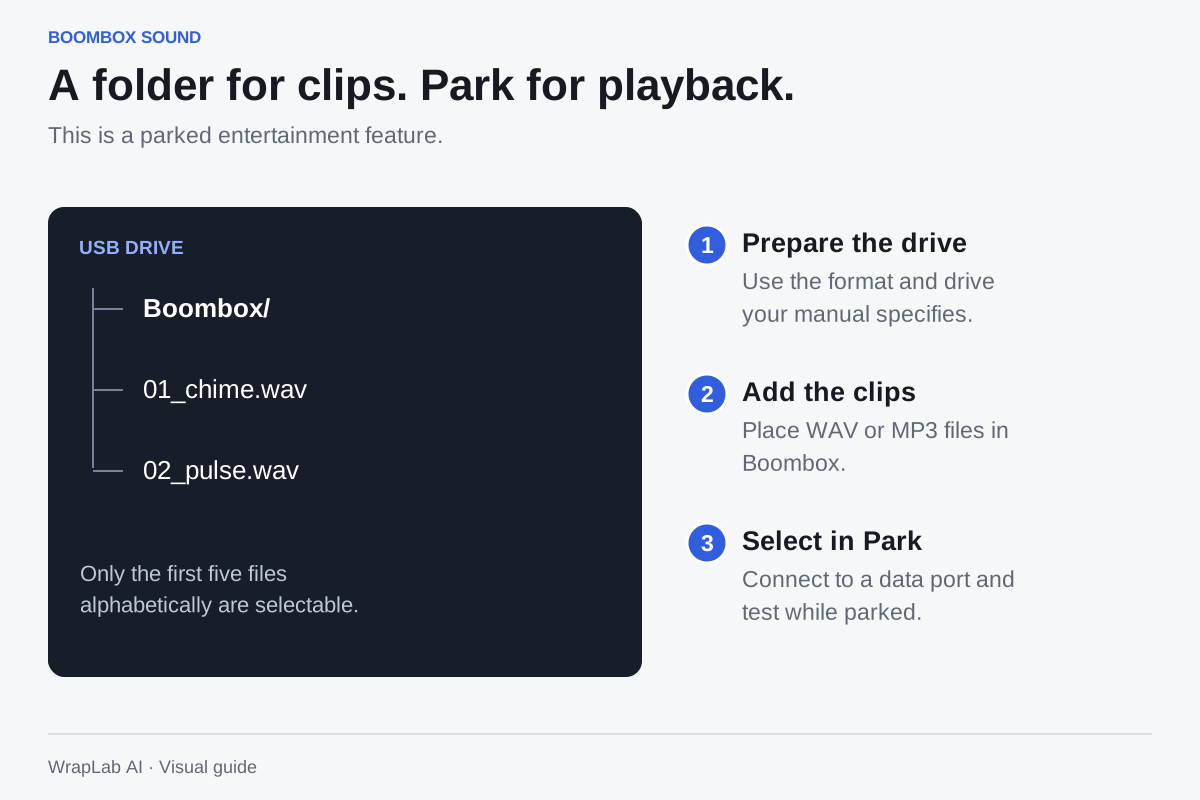
Prepare a separate Boombox drive
Tesla documents a Boombox folder containing WAV or MP3 files on a compatible USB drive. Only the first five files in alphabetical order are selectable. Use the supported drive format and a data-capable USB port specified in your vehicle’s manual; its instructions can require a dedicated drive.
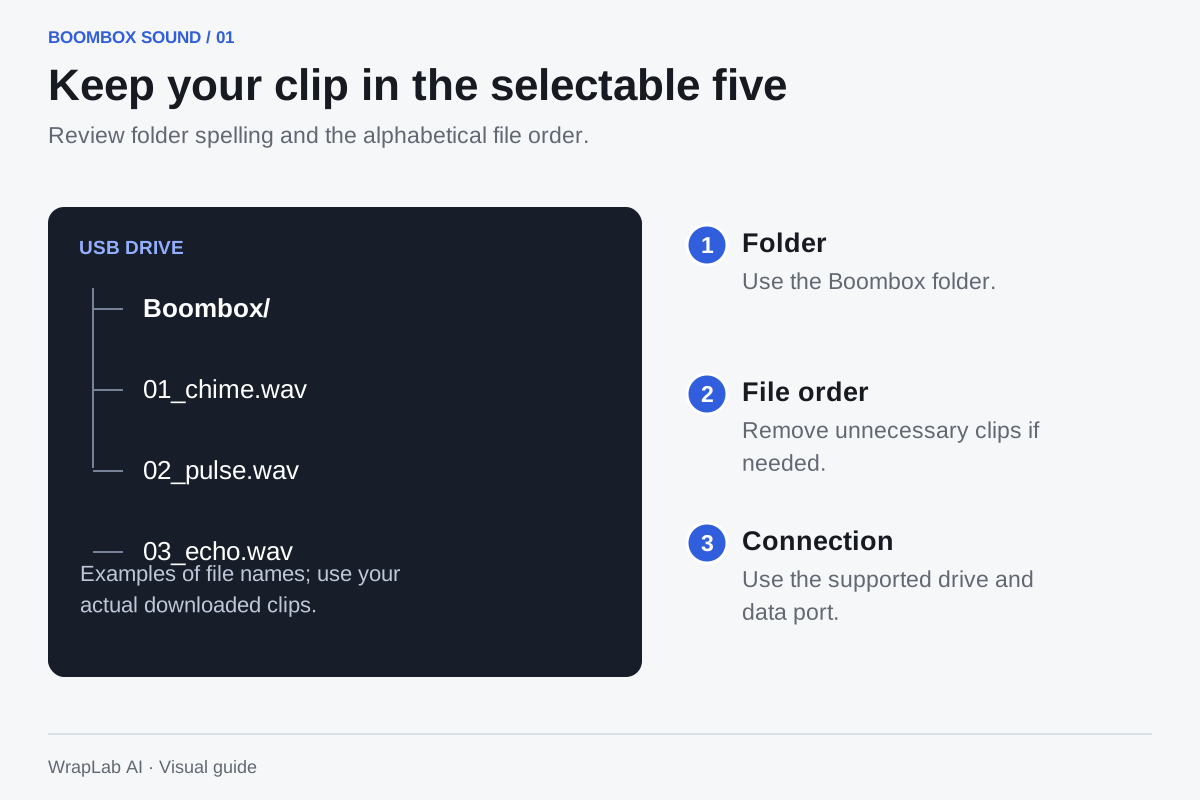
Choose and test while parked
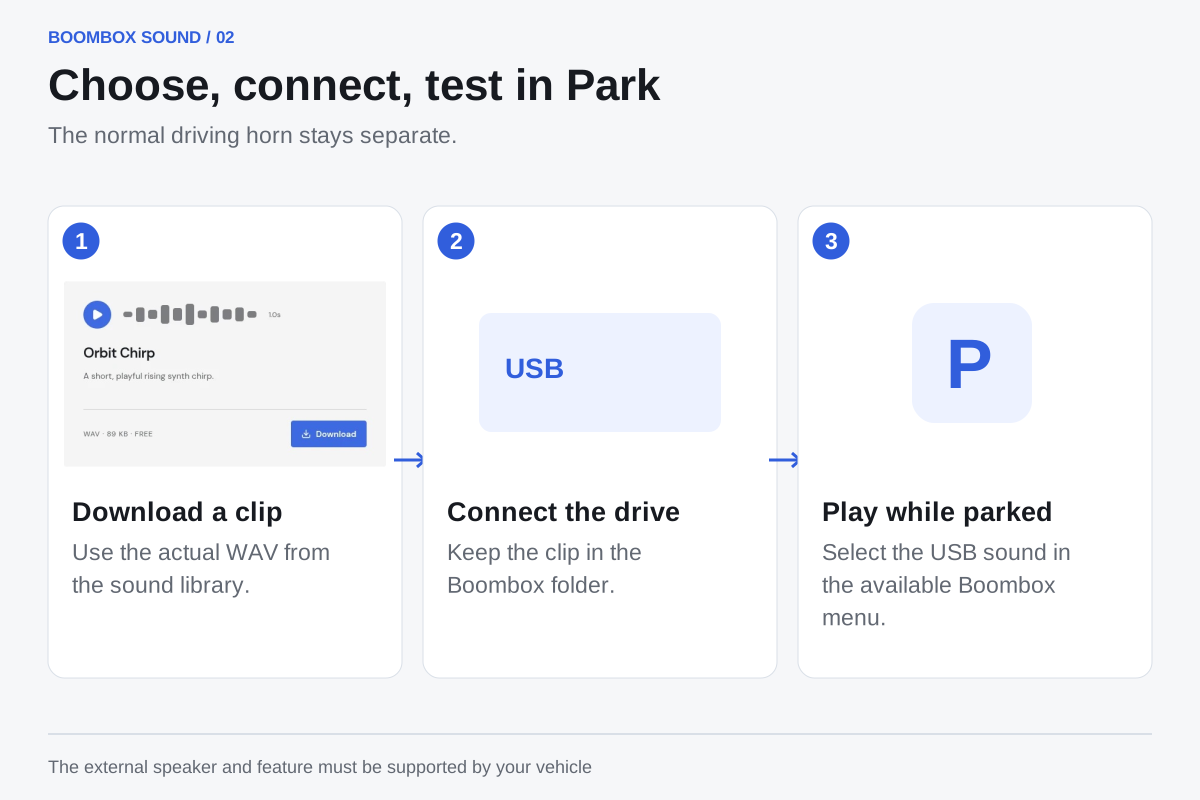
Open Boombox and select your sound from the USB dropdown. On supported vehicles, pressing the horn in Park plays the first five seconds. Our clips are shorter than that. This is a parked entertainment feature, not a replacement for the normal driving horn.
Check compatibility
Boombox needs the Pedestrian Warning System speaker and availability varies by vehicle and market. Follow the manual for your model and check the on-screen instructions if a menu differs.
If your clip does not appear
Check the folder spelling and the list of files already on the drive. Remove unnecessary clips so your selection is among the five Tesla documents as selectable. If the file is visible but playback fails, download a fresh copy and confirm the USB port can read data.
- Download a WAV from the horn library.
- Place it in the Boombox folder on the supported drive.
- Connect the drive to the correct data port.
- Select and test the sound while the car is in Park.
Sources & further reading
Check the manufacturer’s instructions for your vehicle or exact film before installation.
Tesla: Boombox setup and supported playback ↗Pick your signature sound.
Original clips, ready to preview and download for free.
Explore free sounds